
Any user who is an Adminisrator or an Account Manager can create and manage users in OpsReady
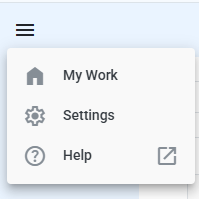
1. Click on Settings at the top left corner of the Navigation Menu (Hamburger icon)

3. Fill in the New person details
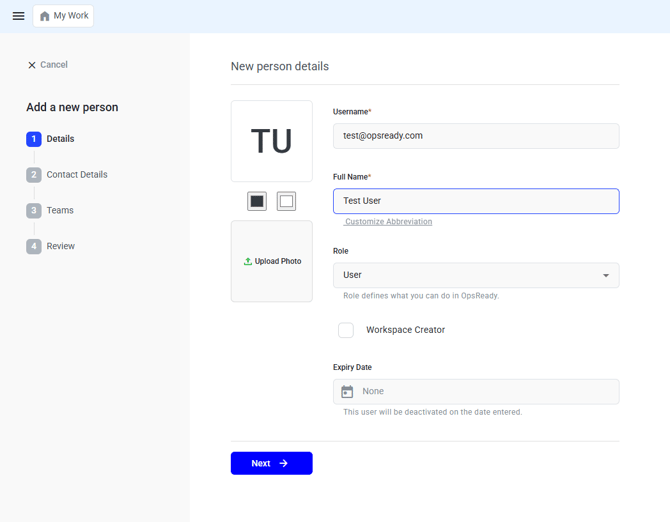
- Admin - Full access across the site, including the ability to create and manage data sources.
- Account Manager - Able to add new users and manage user details.
- User - Regular user with access to site resources via teams and workspaces.
- Contractor - Limited access user who cannot view people and team details, cannot be Workspace Managers or Team Leads.
*Note: You can also grant a user to be a Workspace Creator - this will give them an ability to manually create workspaces on the site.
- You can also set an expiry date for a user account. Once that date is reached, the user will no longer be able to access the site. This is especially useful for contractors or other third-party users.
4. Click Next
5. Fill in the person’s Contact details
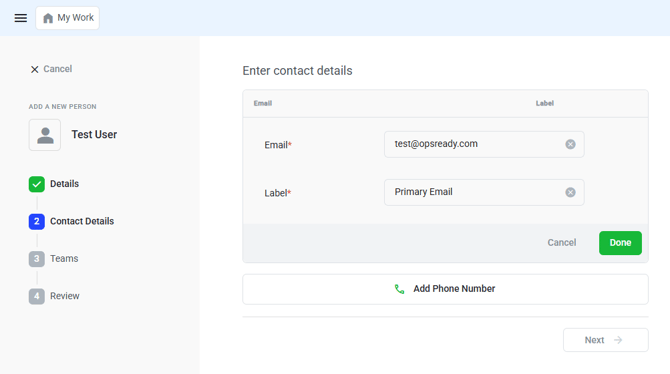
6. Add the email address and click Done
*Note: The primary email address will already be prefilled if it was used as the username
7. Click Next
8. Add them to Teams by clicking on the team or teams you want to add the user to
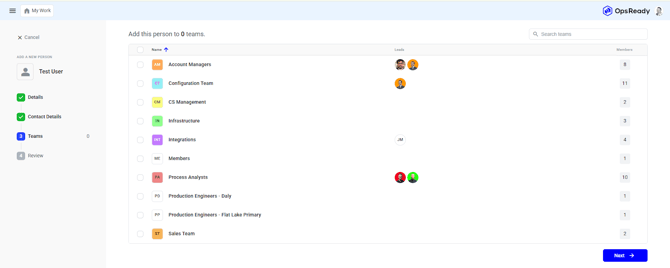
9. Click Next
10. Review the steps
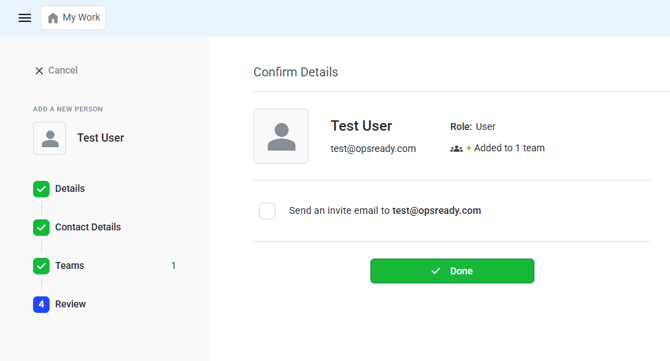
11. Send an invite email to them and click Done
*Note: Invitation emails remain valid for 7 days. You don’t need to send them immediately—they can be sent whenever you’re ready for the user to gain access.