From a Task or Feature Info Section
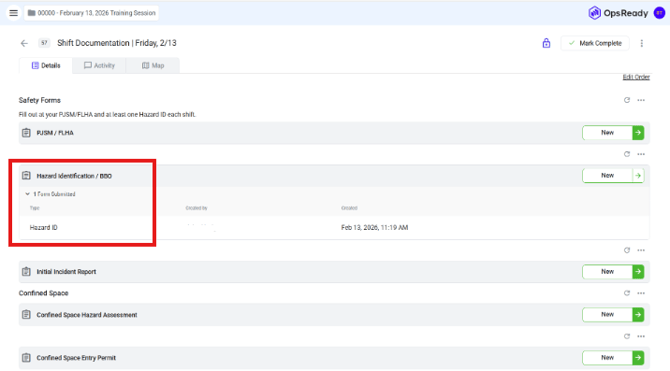
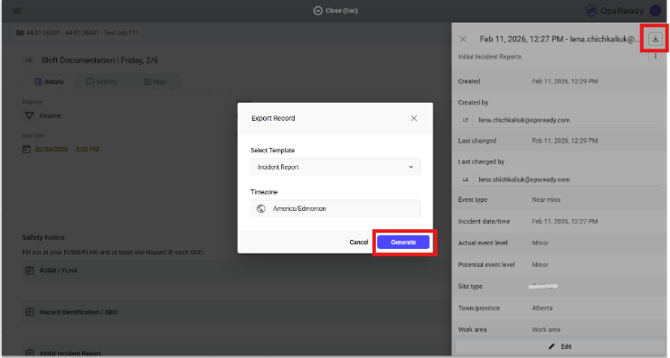
1. Open the task or feature and navigate to the Info section where the report is available and click on the form record to view the completed form
Previewing PDFs while editing a from
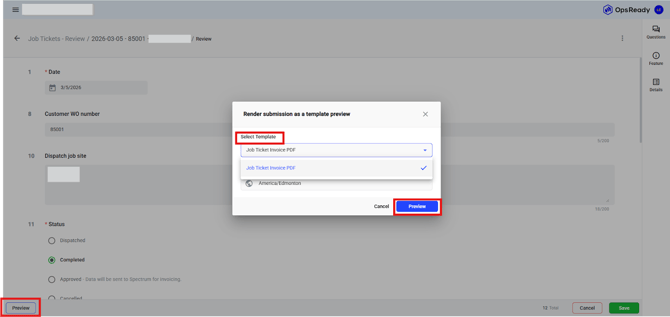
Some forms are available to preview as a PDF while you’re filling them out. While you’re filling out the form, you will see a Preview button in the bottom left corner.
Click on Preview and then confirm the template you want to run. It will pop up in a window to give you a preview of the form you’re about to submit.
*Note: Any fields that are automatically calculated or filled upon submission will not show in the preview.
From a Feature Search in a Workspace
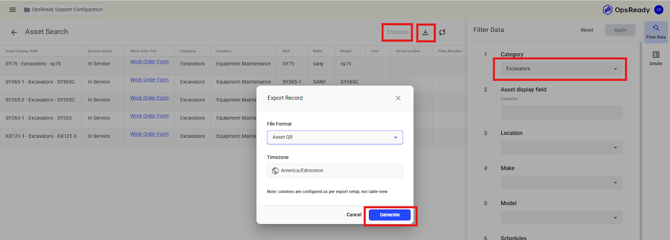
You can also generate a PDF template from multiple records by navigating to the relevant feature search. This is helpful if you want to download a summary report, or multiple PDFs at once.
1. Navigate to the appropriate workspace, click Features and choose the relevant feature search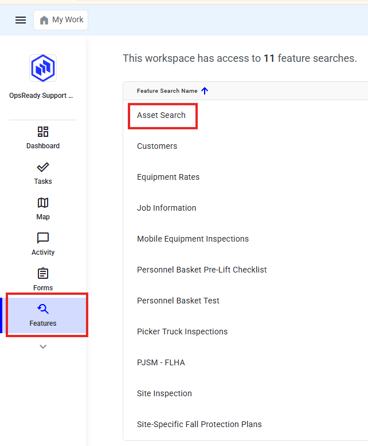
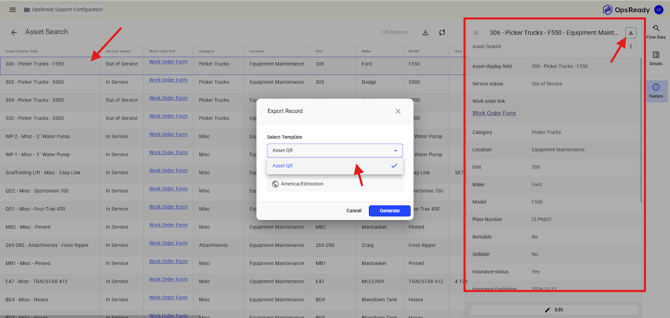
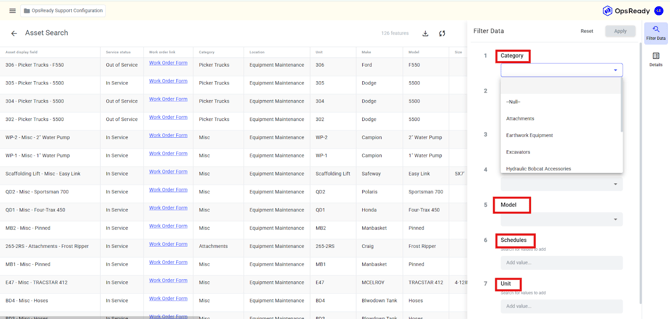
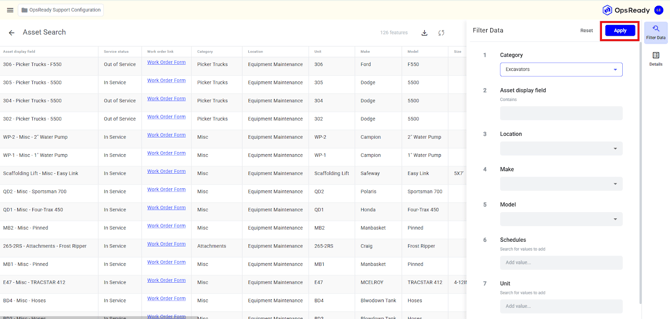
When on the feature search you can filter data of features you need to generate into a PDF report.
2. From the feature search click on Filter Data on the right and filter the data as needed